Productivity & Office
Copyright © Quectel Wireless Solutions Co., Ltd. 2026. All rights reserved.
IBus Chinese Input Method
The Quectel Pi M2 system comes pre-installed with the IBus input method framework and the Chinese Intelligent Pinyin input method. No additional installation is required, and it can be directly configured and used through the system settings.
Input Source Configuration
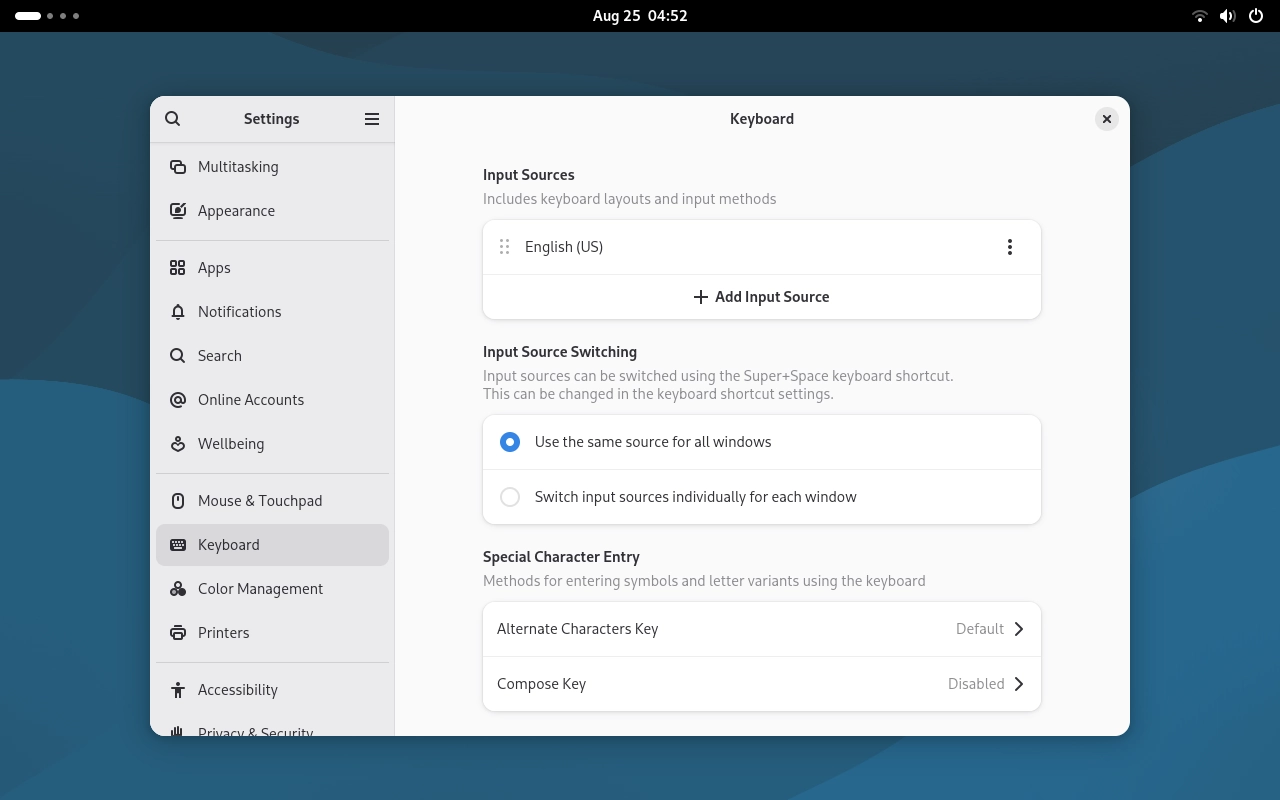
Enter the GNOME desktop, open Settings → Keyboard, and in the “Input Sources” section, you can view and manage the current system input methods. The system provides default support for configuring input sources such as Chinese and English.
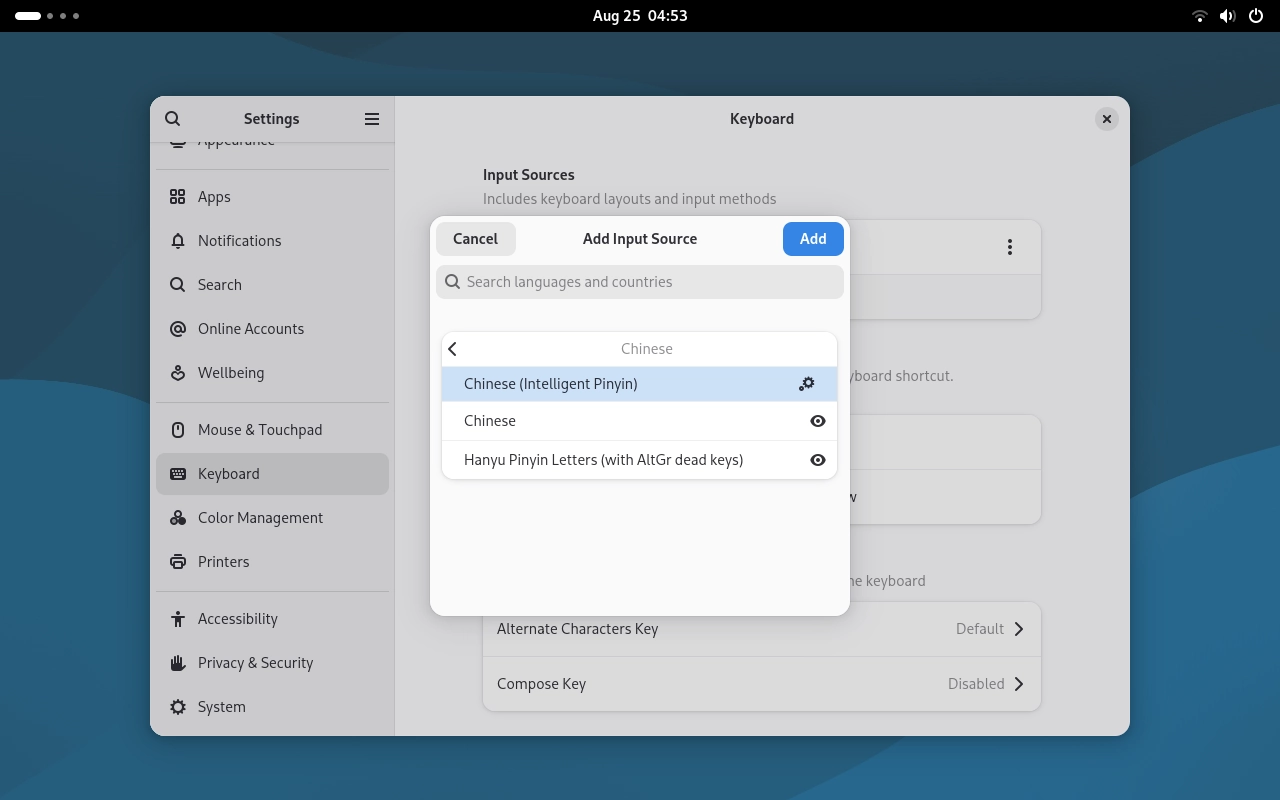
To add the Chinese Pinyin input method: In the “Input Sources” section, click Add Input Source, select Chinese (Intelligent Pinyin), and click Add to complete the configuration.
LibreOffice Office Suite
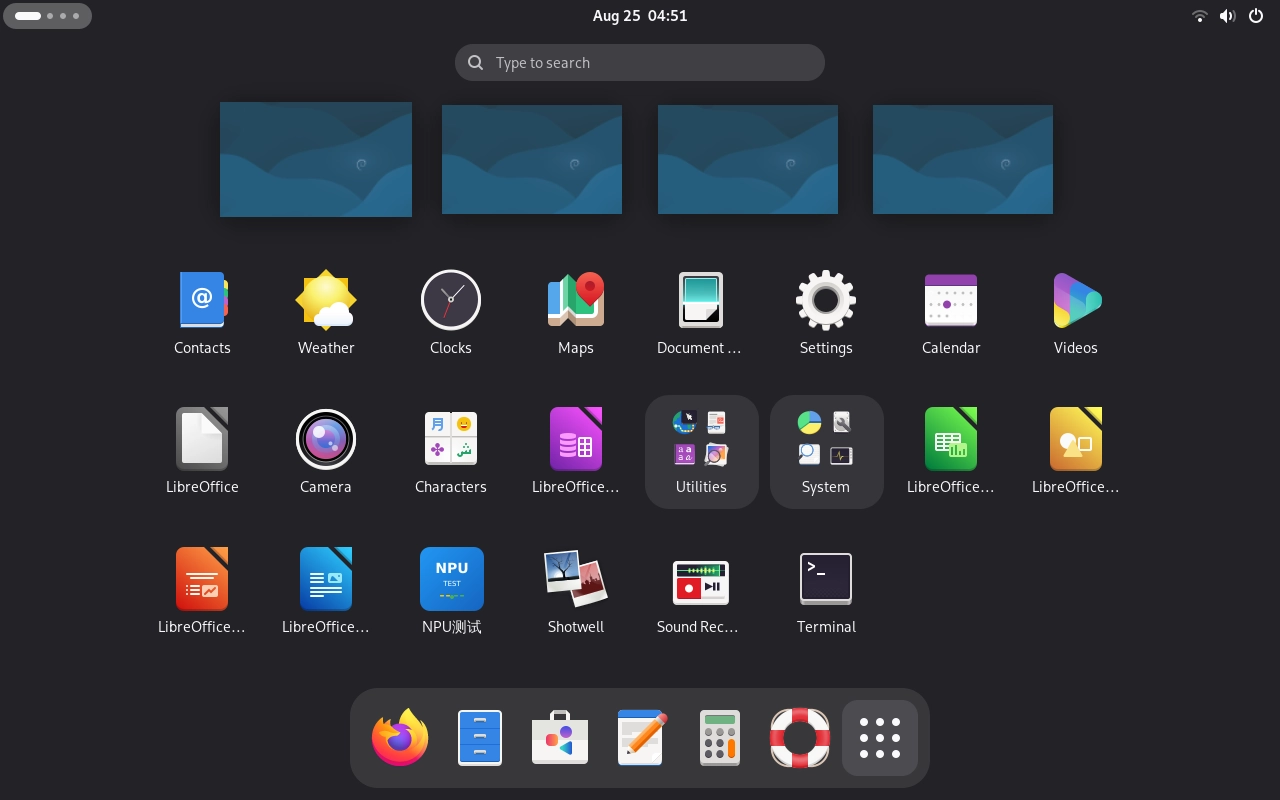
The Quectel Pi M2 system comes with the LibreOffice office suite pre-installed. It can be launched directly from the GNOME application menu without additional installation.
LibreOffice
Open the GNOME application menu to view the pre-installed LibreOffice applications.
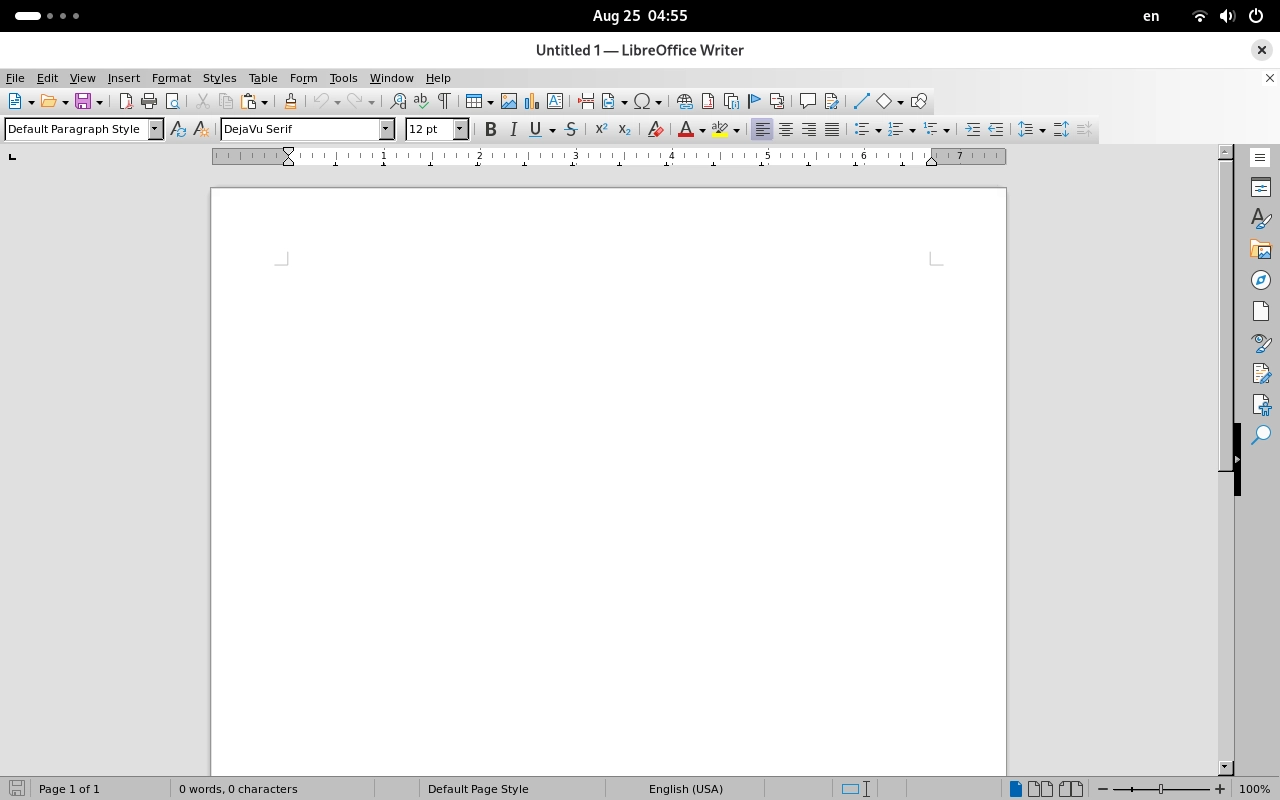
LibreOffice Writer
Open LibreOffice Writer to create, edit, and save text documents.
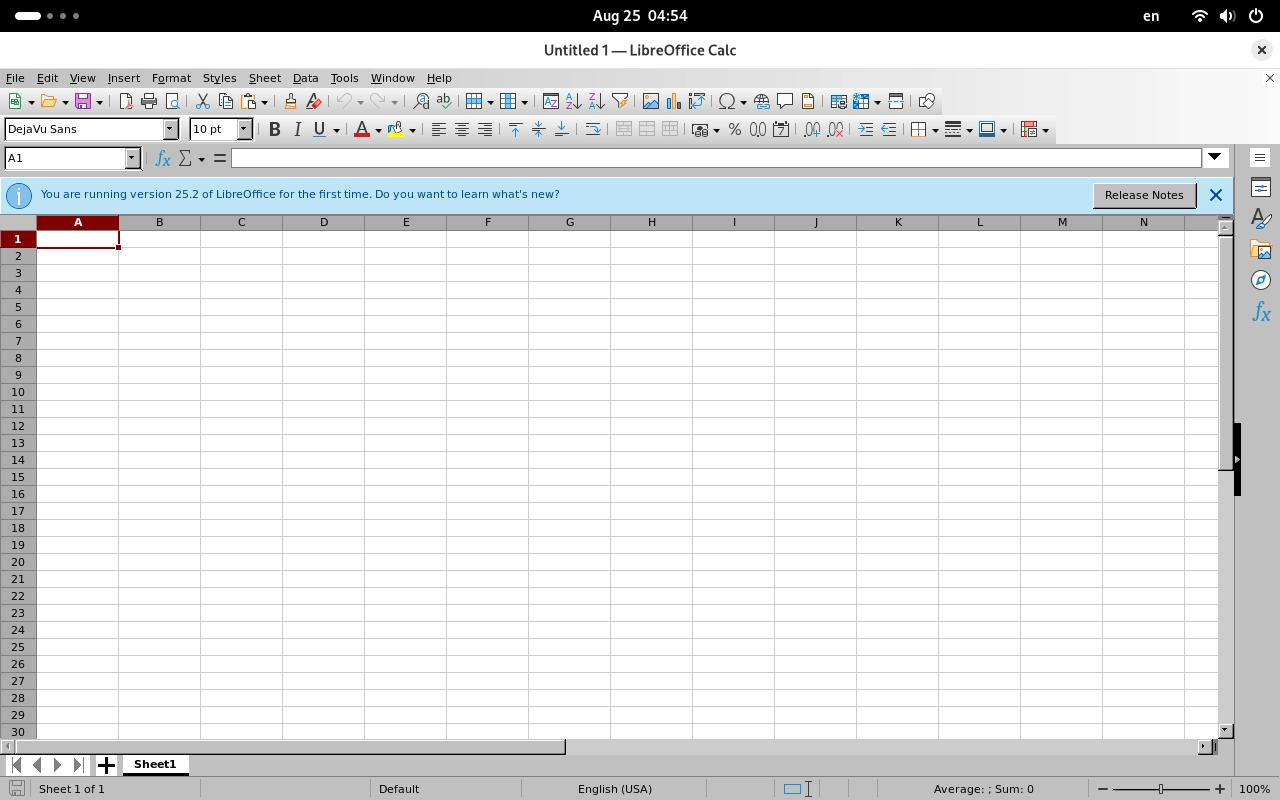
LibreOffice Calc
Open LibreOffice Calc to create, edit, and save spreadsheets.
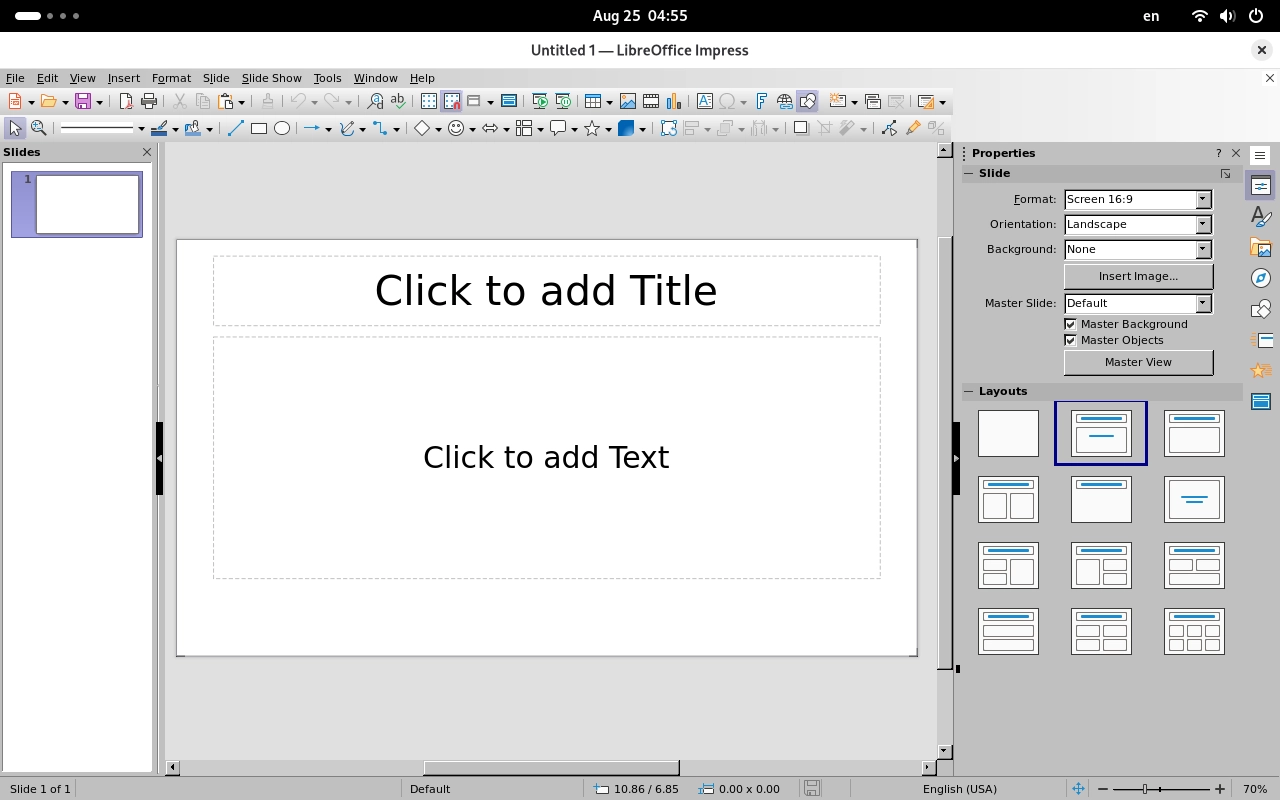
LibreOffice Impress
Open LibreOffice Impress to create, edit, and present presentations.
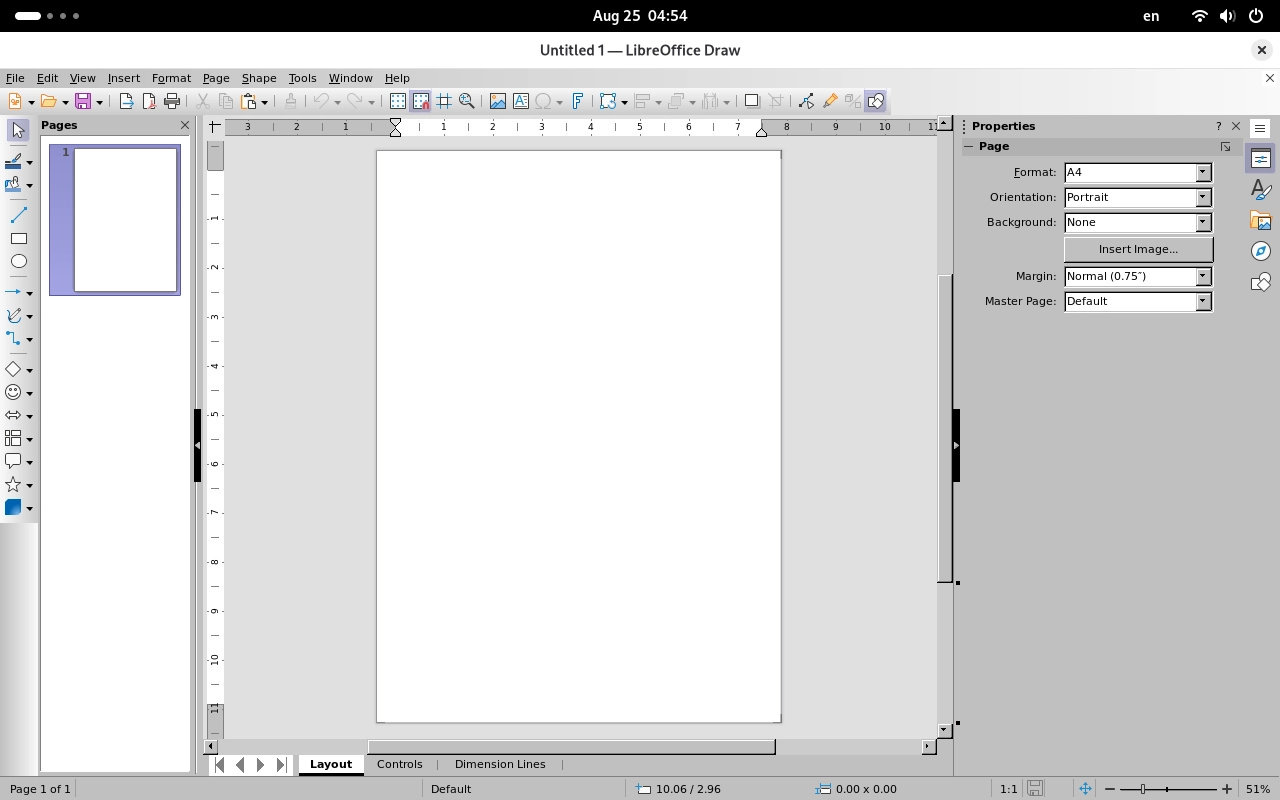
LibreOffice Draw
Open LibreOffice Draw to create drawings and edit graphical documents.
LibreOffice Base
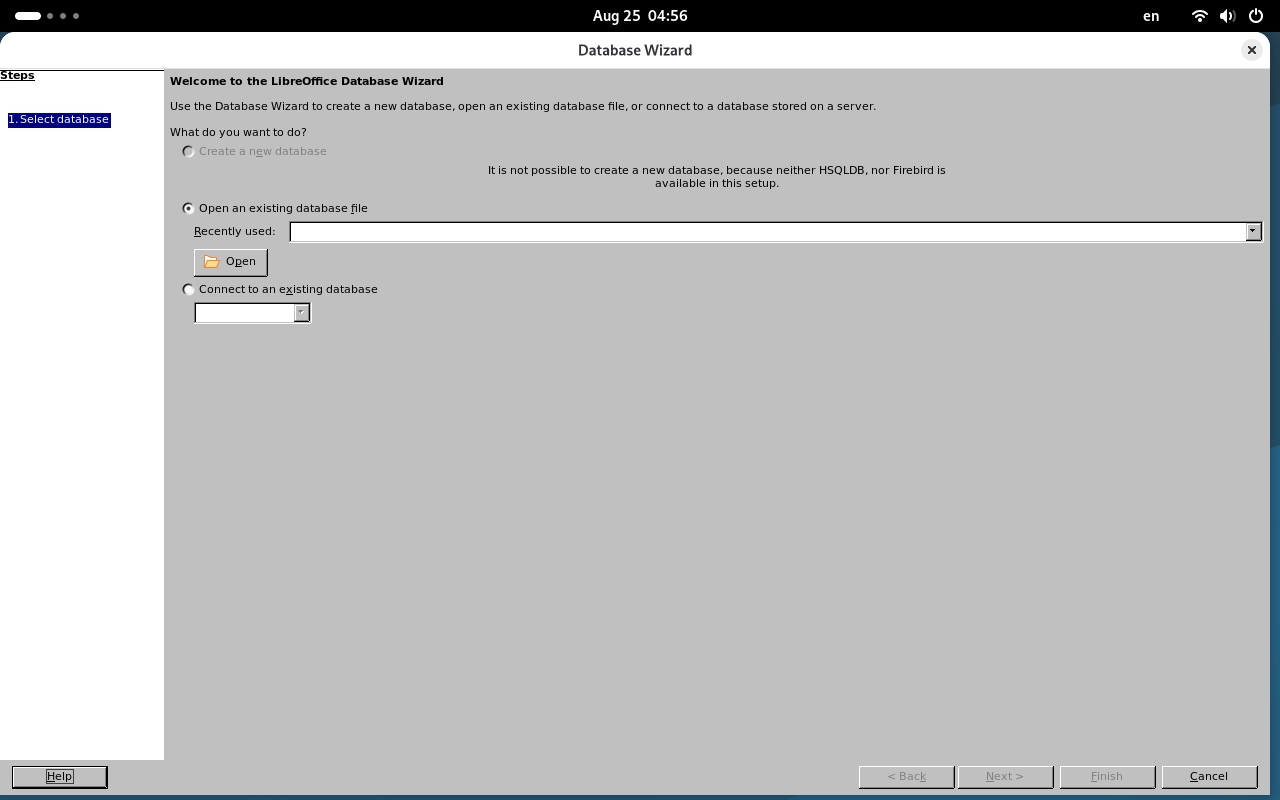
Open LibreOffice Base to access the Database Wizard interface.